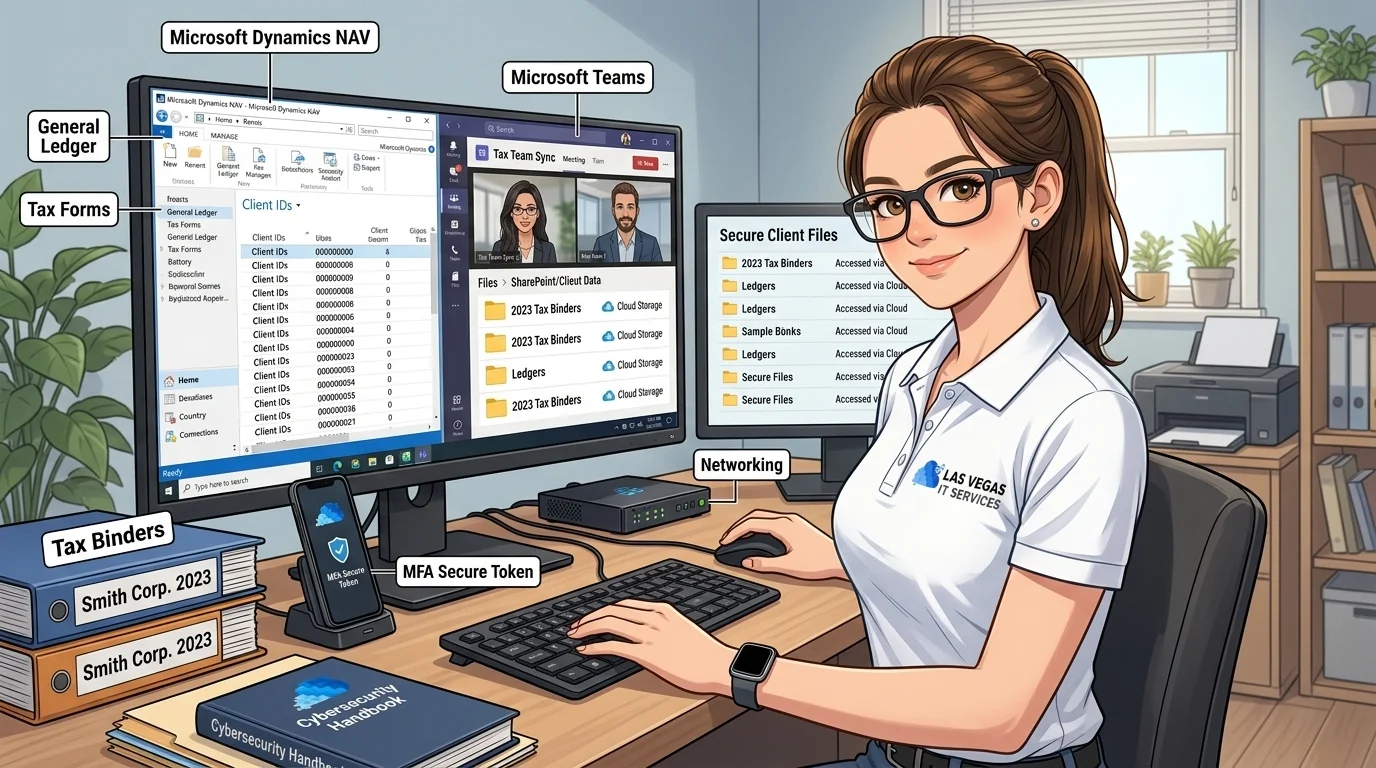
Remote Work Setup for Accounting Teams: A Simple Guide
Remote work isn't going away. Whether it's year-round flexibility or tax season crunch time, your team needs to access files, software, and systems from home-securely.
Here's how to set it up without creating security nightmares or endless tech support calls.
VPN vs. Cloud-Based Access
Traditional VPN: - Connects home computer directly to office network - Can be slow and unreliable - Creates security risks if home computer is compromised - Requires technical setup and ongoing management
Cloud-Based Access (Recommended): - Files and applications live in the cloud - Access from any device with internet - No "tunnel" into your office network - Easier to secure and manage
For most accounting firms, cloud-based solutions (Microsoft 365, cloud-hosted applications) are simpler and more secure than traditional VPNs.
Securing Home Networks
Your employees' home networks are not as secure as your office. Basic steps everyone should take:
- Change the default router password – Factory passwords are easily guessed
- Enable WPA3 or WPA2 encryption – Never use WEP or open networks
- Update router firmware – Manufacturers release security patches
- Use a guest network for IoT devices – Keep smart TVs and speakers separate from work computers
You can't control home networks completely, but these basics reduce risk significantly.
Keeping Client Data Off Personal Devices
The goal: employees can work remotely, but client data never lives on personal devices.
How to achieve this: - Use cloud storage (OneDrive, SharePoint) instead of local files - Access tax software through remote desktop or cloud versions - Prohibit downloading client files to personal computers - Use web-based email instead of local email clients
When data stays in the cloud, a lost or stolen laptop doesn't become a data breach.
Collaboration Tools That Work
Remote teams need to communicate. Here's what works for accounting firms:
- Microsoft Teams – Chat, video calls, file sharing in one place
- SharePoint/OneDrive – Secure document storage and collaboration
- Outlook Calendar – Scheduling and availability
- Secure client portals – For document exchange with clients
Avoid using personal messaging apps (WhatsApp, Facebook Messenger) for work communication. Keep it professional and secure.
Monitoring Remote Security
Trust your team, but verify security:
- Require security software on any device accessing firm data
- Enable device management to enforce policies
- Review access logs periodically
- Use MFA everywhere – Especially for remote access
What about cloud desktops for tax software?
Not every firm can move entirely to cloud-native applications. Tax software vendors still ship products designed for Windows desktops, and many practices rely on desktop versions of QuickBooks, Lacerte, ProSeries, and UltraTax.
Cloud desktops solve that gap. Instead of running tax software on each employee's personal laptop, the software runs on a cloud-hosted Windows environment, and employees connect to it from any device.
How cloud desktops work in practice
With a service like Azure Virtual Desktop, each team member logs into a managed Windows desktop from their browser or a lightweight client. The tax software, client files, and configurations live in the cloud, not on the employee's device.
Three things happen as a result:
- Client data never touches a personal laptop. If a device is lost or stolen, nothing sensitive is on it.
- Software is updated centrally. One patch cycle covers every seat, instead of updating each workstation separately.
- Performance is consistent. A slow home computer no longer bottlenecks tax prep work, because the compute happens in the cloud.
When cloud desktops are worth the cost
Cloud desktops typically run $40 to $100 per user per month depending on the tax software and data volume. That is higher than a basic Microsoft 365 subscription, but lower than buying, securing, and replacing laptops for a hybrid team.
Cloud desktops usually make sense for firms that:
- Use desktop-based tax software that cannot run natively in a browser
- Have staff working from multiple locations, including seasonal home offices
- Need predictable performance during peak filing weeks
- Want to separate firm data from employee hardware
When they are overkill
For a firm entirely on Microsoft 365, a web-based CRM, and cloud accounting, cloud desktops add cost without much security gain. Good device management, conditional access, and MFA usually cover the same risks at a lower price.
The decision comes down to where your tax software lives today and how much control over employee hardware is realistic for your team.
Need Help Setting Up Remote Work?
We help accounting firms implement secure, reliable remote work solutions. No VPN headaches, no security gaps-just productive teams working from anywhere.
See how we can help → | Get started with cloud desktops → | Las Vegas IT services